USER GUIDE
Add Accounts
Learn how to add bank, cash, and savings accounts to your Moniqo budget.
Add Accounts
Once your budget is created, the next step is adding your accounts. Accounts represent where your money actually sits, such as a bank account, a cash wallet, or a savings account. They give Moniqo an accurate picture of your real-world balances.
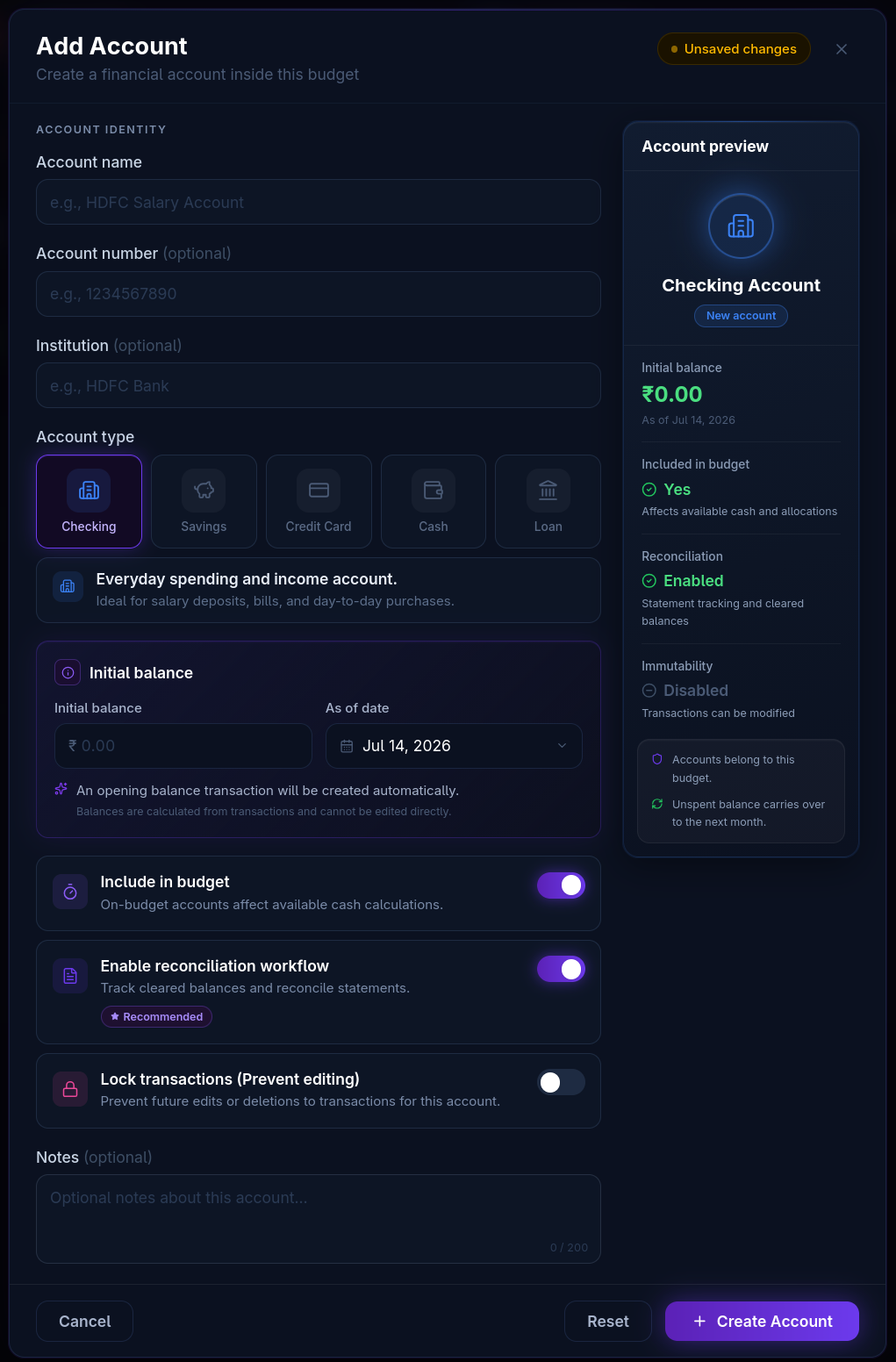
Steps
Follow these steps to add an account to your budget:
- From your budget, select the option to add a new account.
- Enter a name for the account, such as “Checking” or “Cash Wallet.”
- Choose the account type that best matches it, such as bank, cash, or savings.
- Enter the current balance of the account. This becomes its starting balance in Moniqo.
- Save the account.
Repeat these steps for each account you’d like to track. You can add as many accounts as you need, and add more later as your finances change.
Tips
- Add every account you regularly spend from or save in, so your budget reflects your full financial picture.
- Double check your starting balance against your actual bank or cash balance before saving, so your budget starts accurate.
- You can rename or adjust an account’s details later if something changes.
Next Steps
With your accounts in place, you’re ready to start creating envelopes and allocating your income. Head over to the Getting Started guide to continue setting up your budget.